
This is an old revision of the document!
Table of Contents
Hoe de spindel veerdruk gebruiken

De spindel drukveer blokkeren om te graveren zonder neusconus dieptebegrenzer
Als je zonder dieptebegrenzing wenst te graveren, bv. na het uitvoeren van een 3d digitalisering, of wanneer je een 3d bestand wilt frezen, moet de drukring geblokkeerd worden. Om deze veerdrukring te blokkeren moet deze helemaal omlaag geschroefd worden.
 Deze afbeelding toont de spindel veerdrukring in de “omhoog” positie (niet geblokkeerd).
 Deze afbeelding toont de spindel veerdrukring in de “omlaag” positie (geblokkeerd).
| Nota: Graveer NOOIT met dieptebegrenzer én geblokkeerde veerdrukring. Dat kan de Z-as motor en de Z-as wormas, en zelf de controller beschadigen. Respecteer met andere woorden altijd het volgende principe: Start nooit een graveerjob met zowel de neusconus op de spindel en de veerdrukring geblokkeerd. |
De plaatoppervlakte instellen met niet-geblokkeerde veerdrukring en daarna graveren met geblokkeerde veerdrukring
Hierboven staat beschreven hoe de veerdrukring geblokkeerd kan worden, en hoe de neusconus houder ring verwijderd kan worden van de spindel.
Om eerst de plaatoppervlakte in te stellen en daarna zonder neusconus begrenzer te graveren, ga je als volgt tewerk:
- Draai de gekartelde veerdrukring helemaal omhoog, waardoor vlottende Z-beweging mogelijk wordt.
- Trek de transparante stofafzuigslang van het afzuigvoetje.
- Verwijder de gegradueerde neusconus houder ring met de neusconus en het afzuigvoetje.
- Schroef de frees met spanknop die je wenst te gebruiken in de spindel en zet ze goed vast.
- Plaats het materiaal dat je wilt graveren op de graveertafel en leg het goed vast.
- Beweeg de spindel ergens over de te graveren plaat. Gebruik daarvoor het virtuele toetsenbord.
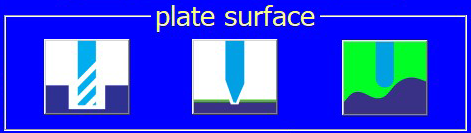
- De “plate surface” moet als volgt ingesteld zijn:
 . Als dat niet zo is, klik dan op deze toets.
 - Klik op de “stel materiaal oppervlakte in” toets:
 op het virtuele toetsenbord.
 - Klik op de “probe” knop
 om de plaatoppervlakte routine te starten. Blijf de “probe” knop drukken. De Z-as zal traag omlaag bewegen tot de spindel het graveermateriaal raakt. De spindel zal vervolgens omhoog bewegen boven het graveermateriaal.
 - Deze procedure impliceert dat de frees het graveermateriaal zal raken. Als dat niet mag, bv. omdat het graveermateriaal zou kunnen beschadigen, kun je een dun plaatje boven op je graveermateriaal leggen, waarvan je de exacte dikte kent. Denk eraan dat de dikte van dit tussenplaatje bijgeteld moet worden bij je graveerdiepte om een correcte gegraveerde diepte te bekomen.
- Draai de gekartelde veerdrukring terug helemaal omlaag, zodat het vlottend mechanisme geblokkeerd wordt.
- Start je graveerjob.


Nota's:

- When working without nosecone and with a locked floating mechanism, the machine will execute the depths which are in the engraving job. If your engraving job contains depths depends entirely on the software used. Some softwares use Z-depths and Z-up instructions, other softwares just use a “Cutter down” and a “Cutter up” instruction, without specifying a real value. In the latter cases, the engraving table will use a preprogrammed depth, which can be entered or modified through the “Job dialog window” on the virtual keypad.
- Whenever the controller contains values, which show up in the “job dialog window”, these values will only be used if the engraving or routing job in question does not contain values for these specific variables. This is valid on a variable per variable basis. E.g. if the engraving job does not contain depths, but does contain XY speeds, then the system will use the depth which is specified in the “job dialog window”, but the XY speed setting from the job will automatically overrule the XY speed setting which is visible in the “job dialog window”.
Surface mapping with unlocked spring and engraving uneven surfaces with locked spring
If the object you want to engrave has an irregular surface, or if the plate you want to engrave is cast acrylic (PMMA), which can have rather important differences in thickness, and you do not want to use the nosecone because of the risk of scratches or shadows along the engraved characters, then using the surface mapper is a possible solution. Surface mapping a plate surface works as follows:
- Remove the engraving cutter from the spindle.
- Remove the vacuum hose from the spindle and then remove the nosecone retainer ring with the nosecone and the vacuum boot from the engraving spindle.
- Insert the special surface map rod (option) into the spindle and fix it in the cutter knob when the rod sticks about 10 mm out at the bottom of the spindle.
- Make sure the spring pressure lock ring is in the max up position.
- Position your object to be mapped on the engraving table and secure it.
- Position your spindle in the upper left corner of an imaginary rectangle in which the engraving job has to be executed. This imaginary rectangle is not necessarily the same as the object’s surface, it can be smaller (but not bigger), and set home there.
- Make sure the “plate surface” is set to
 .
. - Then click the “set surface” key, which will make a small window pop up. In this window several variables have to be entered:
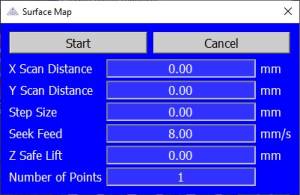
- * “X scan distance”: the width of the imaginary rectangle you want to map. Entering values has to be done by typing the correct numbers on your computer’s keyboard.
- “Y scan distance”: the height of the same imaginary rectangle you want to map.
- “Step size”: the distance between each of the points to be digitized, both in X and in Y. If your plate is almost flat and has relatively unimportant height differences, you can use a relatively high value, e.g. 20 or even 30 mm. If your object has a more irregular relief, keep the step size small, e.g. 5 mm. Which value you have to choose with which kind of surface is a matter of trying and building some experience.
- “seek feed”: the speed at which the spindle with the mapping rod will move down to map each of the points in the mapping matrix. Normally a speed between 5 and 15 mm/sec is adequate.
- “Z Safe Lift”: Z-up move after mapping each point. You just have to make sure that the lift value is high enough to move over to the next point. Suppose that the relief has a rather steep surface, and that the Z-position of the next point to be measured is 3 mm higher than the last measuring point. It is clear that your Z safe lift has to be bigger than 3 mm, otherwise your mapping rod will crash sideways with your relief.
- “save surface map”: In normal circumstances you do not want to save the surface map unless you have to engrave a series of objects with identical surfaces. If you want to save a mapped surface, highlight the “Save Surface Map” option and click the “Enter” key.
There is a separate chapter in this manual, where you can read in detail about the surface mapping option.
- Take out the mapping rod from the spindle, put in the engraving cutter of your choice, surface the cutter somewhere inside the imaginary rectangle which has been mapped and run your engraving job.
- Your 2D engraving job, with all of its speeds and depths, will be projected on the mapped surface. The mapped surface is a fluid interpolated cloud of points. Although the machine in reality performs a 3d job, for the user it is just a 2D application.


Continue to speeds and feeds for different materials.
Continue to the table of contents.


