
This is an old revision of the document!
Table of Contents
Menukeuze "Veelvoud" (Alt + M )
Het concept "Veelvoudplaten"
Het zal geregeld voorkomen dat u de vraag krijgt om een reeks plaatjes te graveren met dezelfde eigenschappen: de kleur, de afmetingen (breedte en hoogte), het aantal tekstregels, de eigenschappen van de verschillende tekstregels (lettertype, regelhoogte, enz.),…) De voor de hand liggende methode bestaat erin dat u de plaatjes vooraf op maat snijdt of zaagt (of bestelt), om vervolgens elk individueel plaatje te gaan graveren.
Nochtans, wanneer de afmetingen van uw individuele plaatjes klein genoeg zijn, zodat u een aantal plaatjes naast elkaar en boven elkaar kan plaatsen, dan is het meestal veel eenvoudiger om één enkele graveerjob te creëren waarin zoveel mogelijk plaatjes in rijen en kolommen naast en boven elkaar geplaatst worden, om die vervolgens in één keer te laten graveren uit een stuk materiaal dat het volledige graveerbereik van uw machine beslaat. Nadien kan de machine het materiaal dan voor u gaan doorsnijden volgens de afmetingen van de individuele plaatjes.
Symmetry bevat daarvoor een specifieke functie met de naam “Veelvoud”. U zou die functie kunnen vergelijken met een A4-printer die in één keer 2 maal 7 of 3 maal 8 etiketten print, vertrekkend van één enkel blad A4-formaat.
Voorbeelden
Eerste voorbeeld: U bent de eigenaar van een X-300 met een graveerbereik van 300 x 200 mm en u moet 30 labels graveren van 55 mm breed bij 35 mm hoog. Dan kan u één enkele graveerjob aanmaken die 25 van die labels bevat: 5 rijen van telkens 5 labels naast elkaar.
 Een ander voorbeeld: U heeft een stuk graveermateriaal van (minimaal) 180 mm x 75 mm en uw labels zijn 90 x 25 mm. U kan dan zes labels graveren in één keer. Het voorbeeld dat we u gaan tonen vertrekt van een stuk materaal van 200 x 100 mm.
Bovendien kan u de labels op maat laten snijden met behulp van een specifieke graveerfrees die speciaal met dat doel werd ontworpen. Het resultaat: zes individuele plaatjes, waarvan de vier randen netjes zijn afgeschuind.
Werkmethode
Voordat we het Veelvoud-scherm grondiger bekijken overlopen we even de methode om een Veelvoud te ontwerpen.
- De eerste stap zal erin bestaan om de layout aan te maken (of te openen) van één individueel plaatje zoals u dat wil hebben. De eenvoudigste methode om zo een job te creëren biedt u de menukeuze Autolayout. Op die manier zal u:
- de afmetingen van uw plaatje bepalen
- het aantal tekstregels kiezen en hun specifieke regelhoogtes bepalen
- een lettertype kiezen
- een logo toevoegen, enz.
- De volgende stap, die het ook makkelijker maakt om het eindresultaat te beoordelen, is dat u uw tekst ingeeft voor dat ene plaatje. Wanneer dat achter de rug is, dan kan u die layout opslaan voor toekomstig gebruik.
- Wanneer u helemaal tevreden bent met de look van uw plaatje – indien gewenst kan u het ontwerp ook voorleggen aan anderen – opent u het Veelvoud-venster en converteert de job waarvan u vertrokken bent naar een veelvoud. Daarvoor geeft u de afmetingen in van het stuk materiaal dat u gaat gebruiken, de marges, het aantal plaatjes dat u wil graveren en een paar andere gegevens.
- U bewaart uw job en start de graveermachine.
Schematische voorstelling
| Step 1 and 2 | A single layout with text |
|---|---|
 |
|
| Step 3 | The Multiplate window |
 |
Het "Veelvoud"-venster

▪ Material Dimensions
- Material Width
- Material Height
The original height and width shown are taken from the height and width of your original singe plate layout. You will enter the height and width of the piece of material you are going to use.
▪ Material Margins
- Left Margin
- Right Margin
- Top Margin
- Bottom Margin
The standard setting will be 0.00 mm or .0 inches. We advise you to always set a certain margin, for several reasons:
- Most engraving machines are equipped with bumper slabs. In normal circumstances, the bumper slabs will not protrude above the material surface. However, when these slabs stand out above the plate surface and your engraving is done with the aid of the depth regulator nose, the depth regulator nose could hit the bumper slabs when moving too close to the side of the sheet. If that is the case, the Material margin on these sides should be higher than the radius of your depth regulator nose. You should enter a value of at least 8 mm or .2 inches.
- If set correctly, the height of the bumper slabs allows them to stand out above the machine’s table surface, but lower than the material surface. Even if this is the case, it could happen that the wider part of your conical tool would touch the bumper slabs when engraving or “scoring” too closely to that side of the material.
- When setting a 0 mm Material margin where there are no bumper slabs, the Multiplate option will allow your machine to position the score line exactly on the side of the material, or even outside the material, when the actual material dimensions ar slightly smaller than the Material Dimensions entered in Multiplate. As a consequence, only the inner borders of your plates will have a beveled (or slanted) side. The margin will make sure the score line is made properly in the material.
▪ Interplate Margins
- Horizontal
- Vertical
The standard setting is 0.00 mm or .0 inches. If the individual nametags will not be cut on the machine using Score between plates, but with a circular saw, you will want to add an interplate margin wich compensates for the width of your sawblade.
▪ Score Details
- Score Between Plates will prompt the machine to cut a groove between and around the individual plates (or tags) after having engraved the texts and logos.
- Pause before score will prompt the engraving machine to pause after having engraved all texts and logos. It allows the operator to replace the engraving cutter by a scoring cutter, the tip of which has a specific geometry, with a cutting depth preset in such a way that your material will be partially cut through with a V-shaped groove. This allows you to easily separate the individual plates or tags.
The obvious setting would be to choose “Pause”. Whether you need to swap cutters or not, you can restart your machine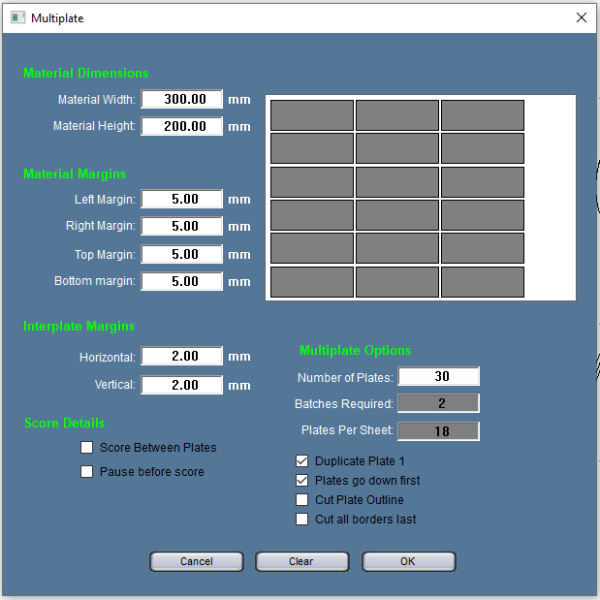 after the pause by lifting the pause through the machine keypad.
▪ Multiplate Options
- Number of plates
- Batches required
- Plates per sheet
The only one of three boxes that can be modified by the operator is the number of plates. Both the other parameters, plates per sheet and batches required (how many sheets you require) will be calculutad based on the size of the dividual plates, the material dimensions and the number of plates you require.
- Duplicate Plate 1: When your first plate you are about to reproduce contains lines filled with text, these texts will be copied onto the corresponding lines of the other plates. The other option is to create a series of blank plates that will have to be filled with text, either by typing the texts or by using the Text Merge Wizard.
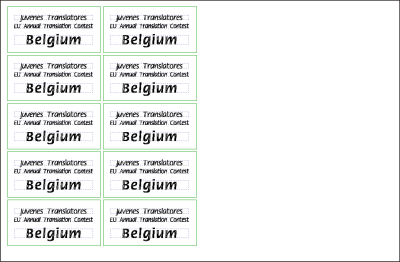
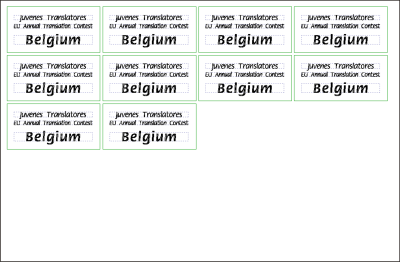
- Plates go down first: When this option is not selected, the plates will be engraved from left to right, then from top to bottom, i.e. row by row. With this option selected, the machine will engrave the plates first from top to bottom, before starting with the next column of plates.
The example below on the left is showing the result when the “Plates go down first” checkbox was checked, the example on the right shows the same Multiplate job, but with “Plates go down first” unchecked.
- Cut Plate Outline
- Cut all borders last


Een Voorbeeldjob
- Badges for the Anthromax executive staff
Anthromax’s 30-headed executive staff requires nametags for public appearances and corporate meetings.


